Getting Started with media device
When developing for the web, the WebRTC standard provides APIs for accessing cameras and microphones connected to the computer or smartphone. These devices are commonly referred to as Media Device and can be accessed with JavaScript through the navigator.mediaDevices object, which implements the MediaDevice interface. From this object we can enumerate all connected devices, listen for device changes (when a device is connected or disconnected), and open a device to retrieve a Media Stream.
The most common way this is used is through the function getUserMedia(), which returns a promise that will resolve to a MediaStream for the matching media devices. This function takes a single MediaStreamConstraints object that specifies the requirements that we have. For instance to simply open the default microphone and camera, we would do the following
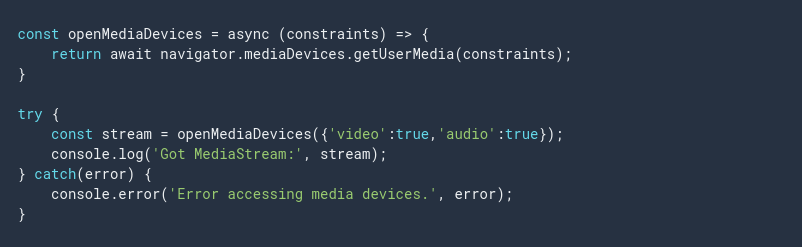
The call to getUserMedia() will trigger a permission request. If the user accepts the permission, the promise is resolved with a MediaStream containing one video and one audio track. If the permission is denied, a PermissionDeniedError is thrown. In case there are no matching devices connected, a NotFoundError will be thrown.
Querying media devices
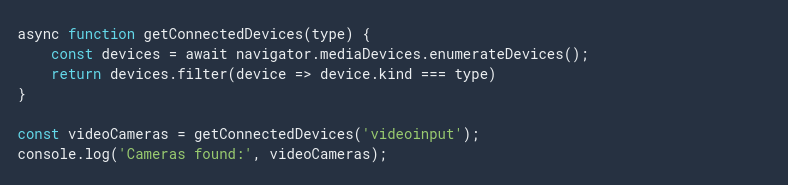
In a more complex application, we will most likely want to check all the connected cameras and microphones and provide the appropriate feedback to the user. This can be done by calling the function enumerateDevices(). This will return a promise that resolves to an array of MediaDevicesInfo that describe each known media device. We can use this to present a UI to the user which let’s them pick the one they prefer. Each MediaDeviceInfo contains a property name kind with the value audio input, video input, indicating what type of media device it is.
Listening for device changes
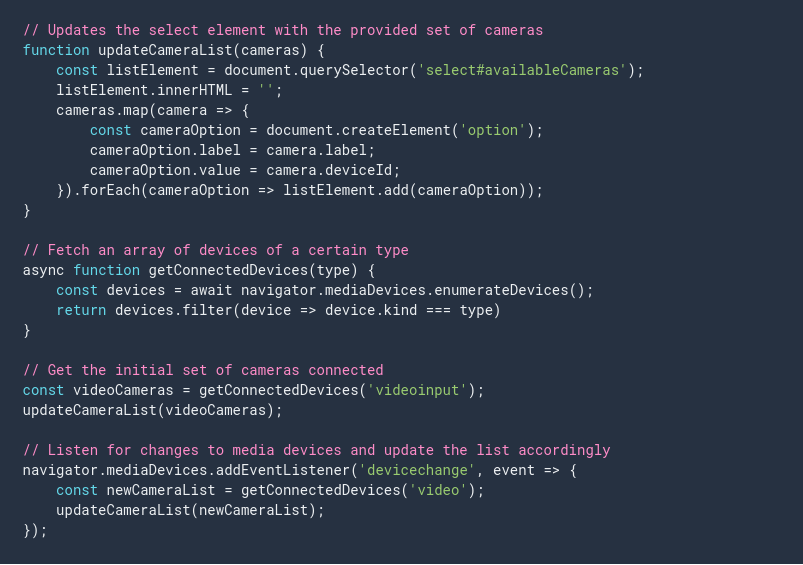
Most computers support plugging in various devices during runtime. It could be a webcam connected by USB, a Bluetooth headset, or a set of external speakers. In order to properly support this, a web application should listen for the changes of media devices. This can be done by adding a listener to navigator.mediaDevices for the device change event.
Media Constraints
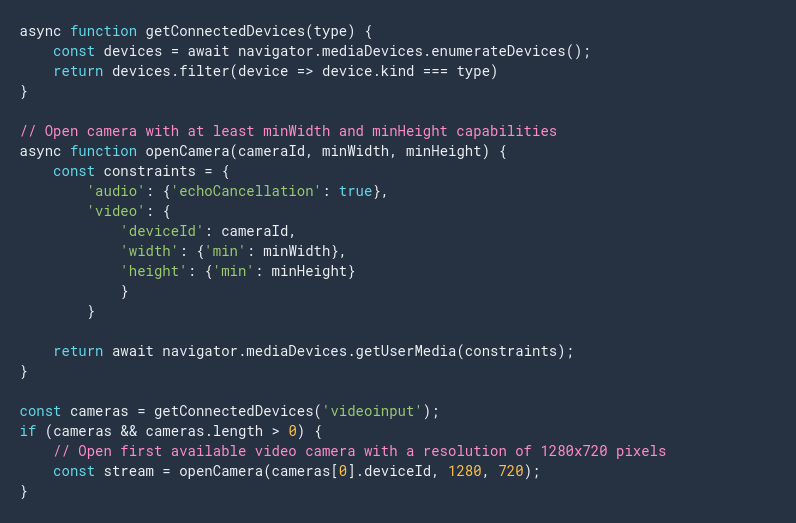
The constraints object which must implement the MediaStreamConstraints interface, that we pass as a parameter to getUserMedia() allows us to open a media device that matches a certain requirement. These requirements can be very loosely defined (audio and/or video), or very specific (minimum camera resolution or an exact device ID). It is recommended that applications that use the getUserMedia() API first check the existing devices and then specify a constraint that matches the exact device using deviceId constraint. Devices will also, if possible, be configured according to the constraints. We can enable echo cancellation on microphones or set a specific or minimum width and height of the video from the camera.
Local playback
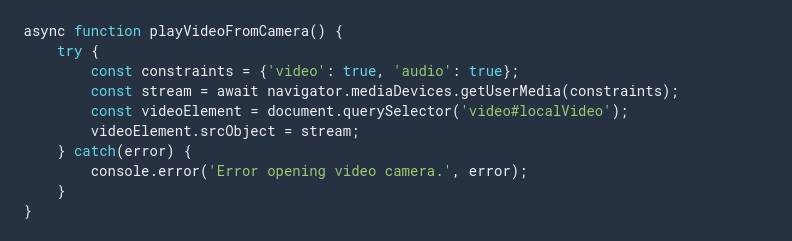
Once a media device has been opened and we have a MediaStream available, we can assign it to a video or audio element to play the stream locally.
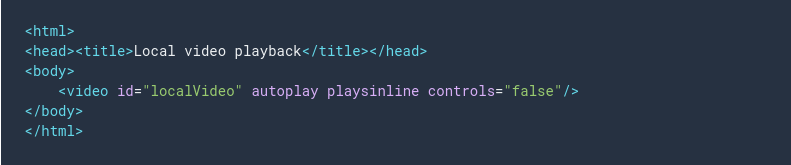
The HTML needed for a typical video element used with getUserMedia() will usually have the attributes autoplay and playsinline. The autoplay attribute will cause new streams assigned to the element to play automatically. The playsinline attribute allows video to play inline, instead of only in full screen, on certain mobile browsers. It is also recommended to use controls="false" for live streams, unless the user should be able to pause them.
Media capture and constraints
The media part of WebRTC covers how to access hardware capable of capturing video and audio, such as cameras and microphones, as well as how media streams work. It also covers display media, which is how an application can do screen capturing.
Media devices
All cameras and microphones that are supported by the browser are accessed and managed through the navigator.mediaDevices object. Applications can retrieve the current list of connected devices and also listen for changes, since many cameras and microphones connect through USB and can be connected and disconnected during the lifecycle of the application. Since the state of a media device can change at any time, it is recommended that applications register for device changes in order to properly handle changes.
Constraints
When accessing media devices, it is a good practice to provide as detailed constraints as possible. While it is possible to open the default camera and microphone with a simple constraint, it might deliver a media stream that is far from the most optimal for the application.
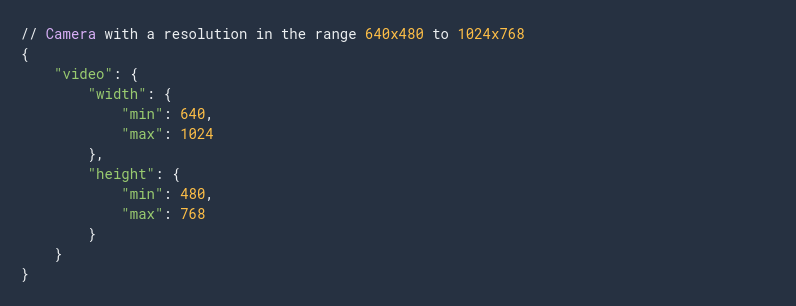
The specific constraints are defined in a MediaTrackConstraint object, one for audio and one for video. The attributes in this object are of type ConstraintLong, ConstraintBoolean, ConstraintDouble or ConstraintDOMString. These can either be a specific value (e.g., a number, boolean or string), a range (LongRange or DoubleRange with a minimum and maximum value) or an object with either an ideal or exact definition. For a specific value, the browser will attempt to pick something as close as possible. For a range, the best value in that range will be used. When exact is specified, only media streams that exactly match that constraint will be returned.
To determine the actual configuration a certain track of a media stream has, we can call MediaStreamTrack.getSettings() which returns the MediaTrackSettings currently applied.
It is also possible to update the constraints of a track from a media device we have opened, by calling applyConstraints() on the track. This lets an application re-configure a media device without first having to close the existing stream.
Display media
An application that wants to be able to perform screen capturing and recording must use the Display Media API. The function getDisplayMedia() (which is part of navigator.mediaDevices is similar to getUserMedia() and is used for the purpose of opening the content of the display (or a portion of it, such as a window). The returned MediaStream works the same as when using getUserMedia(). The constraints for getDisplayMedia() differ from the ones used for regular video or audio input.
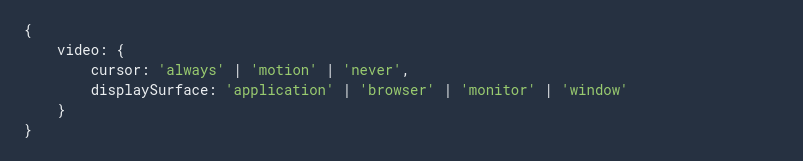
The code snippet above shows how the special constraints for screen recording works. Note that these might not be supported by all browsers that have display media support.
Getting Started with peer connection
Peer connection is the part of the WebRTC specification that deals with connecting two applications on different computers to communicate using peer-to-peer protocols. The communication between peers can be video, audio or arbitrary binary data (for clients supporting the RTCDataChannel API). In order to discover how two peers can connect, both clients need to provide an ICE Server configuration. This is either a STUN or a TURN-server, and their role is to provide ICE candidates to each client which is then transferred to the remote peer. This transferring of ICE candidates is commonly called signaling.
Signaling
The WebRTC specification includes APIs for communicating with an ICE (Internet Connectivity Establishment) Server, but the signaling component is not part of it. Signaling is needed in order for two peers to share how they should connect. Usually this is solved through a regular HTTP-based Web API (i.e., a REST service or other RPC mechanism) where web applications can relay the necessary information before the peer connection is initiated. The following code snippet shows how this fictitious signaling service can be used to send and receive messages asynchronously. This will be used in the remaining examples in this guide where necessary.
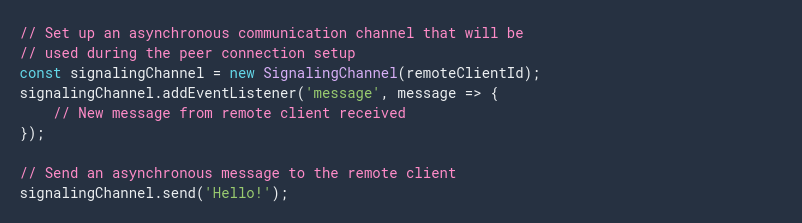
Signaling can be implemented in many different ways, and the WebRTC specification doesn't prefer any specific solution.
Initiating peer connections
Each peer connection is handled by a RTCPeerConnection object. The constructor for this class takes a single RTCConfiguration object as its parameter. This object defines how the peer connection is set up and should contain information about the ICE servers to use.
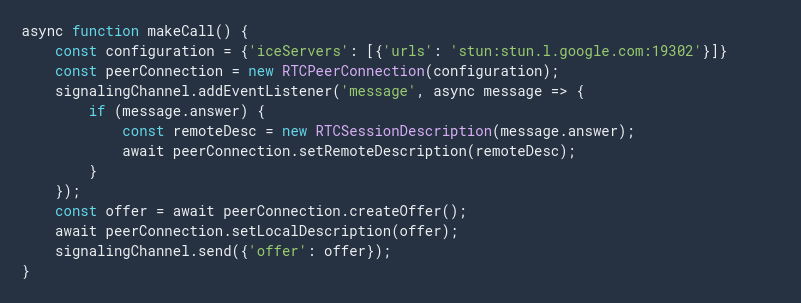
Once the RTCPeerConnection is created we need to create an SDP offer or answer, depending on if we are the calling peer or receiving peer. Once the SDP offer or answer is created, it must be sent to the remote peer through a different channel. Passing SDP objects to remote peers is called signaling and is not covered by the WebRTC specification.
To initiate the peer connection setup from the calling side, we create a RTCPeerConnection object and then call createOffer() to create a RTCSessionDescription object. This session description is set as the local description using setLocalDescription() and is then sent over our signaling channel to the receiving side. We also set up a listener to our signaling channel for when an answer to our offered session description is received from the receiving side.
On the receiving side, we wait for an incoming offer before we create our RTCPeerConnection instance. Once that is done we set the received offer using setRemoteDescription(). Next, we call createAnswer() to create an answer to the received offer. This answer is set as the local description using setLocalDescription() and then sent to the calling side over our signaling server.
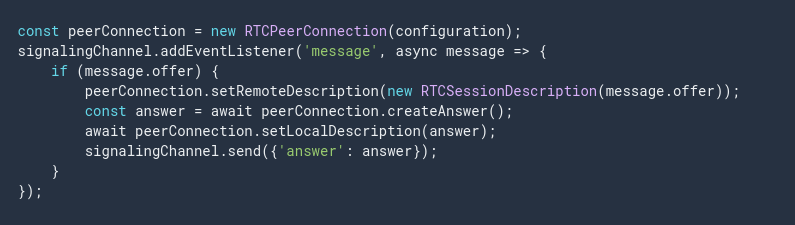
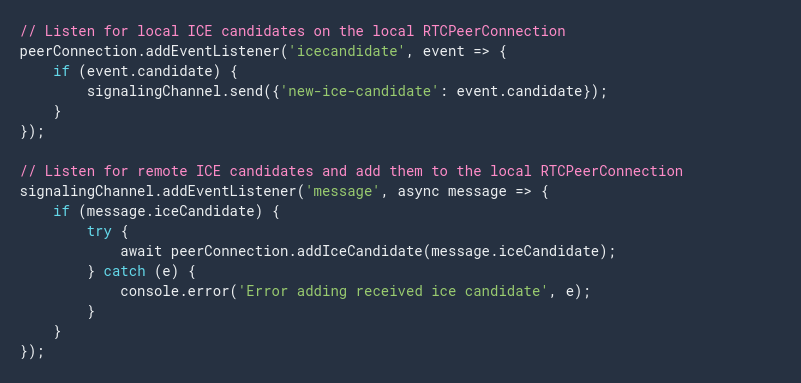
Once the two peers have set both the local and remote session descriptions they know the capabilities of the remote peer. This doesn't mean that the connection between the peers is ready. For this to work we need to collect the ICE candidates at each peer and transfer (over the signaling channel) to the other peer.
ICE candidates
Before two peers can communicate using WebRTC, they need to exchange connectivity information. Since the network conditions can vary depending on a number of factors, an external service is usually used for discovering the possible candidates for connecting to a peer. This service is called ICE and is using either a STUN or a TURN server. STUN stands for Session Traversal Utilities for NAT, and is usually used indirectly in most WebRTC applications.
TURN (Traversal Using Relay NAT) is the more advanced solution that incorporates the STUN protocols and most commercial WebRTC based services use a TURN server for establishing connections between peers. The WebRTC API supports both STUN and TURN directly, and it is gathered under the more complete term Internet Connectivity Establishment. When creating a WebRTC connection, we usually provide one or several ICE servers in the configuration for the RTCPeerConnection object.
Trickle ICE
Once a RTCPeerConnection object is created, the underlying framework uses the provided ICE servers to gather candidates for connectivity establishment (ICE candidates). The event icegatheringstatechange on RTCPeerConnection signals in what state the ICE gathering is (new, gathering or complete). While it is possible for a peer to wait until the ICE gathering is complete, it is usually much more efficient to use a "trickle ice" technique and transmit each ICE candidate to the remote peer as it gets discovered. This will significantly reduce the setup time for the peer connectivity and allow a video call to get started with less delays.
To gather ICE candidates, simply add a listener for the ice candidate event. The RTCPeerConnectionIceEvent emitted on that listener will contain candidate property that represents a new candidate that should be sent to the remote peer (See Signaling).
Connection established
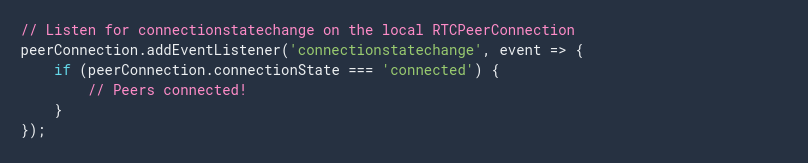
Once ICE candidates are being received, we should expect the state for our peer connection will eventually change to a connected state. To detect this, we add a listener to our RTCPeerConnection where we listen for connection statechange events.